How To Get Here?
- From the Menu
- Reports –> Imported Reports
What is it for?
- To see the status of your imported reports.
- To see if there are any errors in the file you imported.
- To download the report and make the necessary changes.
- To re-upload the report.
Hints and Tips!
- A report is deleted from this screen once 30 days have passed since the request was made.
- In order to download a report you have imported, click Download.
- When an imported report has certain errors, the status will say “_DONE_WITH_WARNINGS_”.
- If a report fails completely, the status will say “FAILED”, and you will be able to see the error under the Error column.
- Read the individual articles for each file type
Screen Print
Content
(*) denotes features not yet implemented at the time of writing
- File Name
- The external file name of the imported file
- Report Type
- The type of the file which was imported
- Cost Of Goods
- Product Settings
- Other Operating Expenses
- The type of the file which was imported
- Request Made
- Date and time when the upload request was received
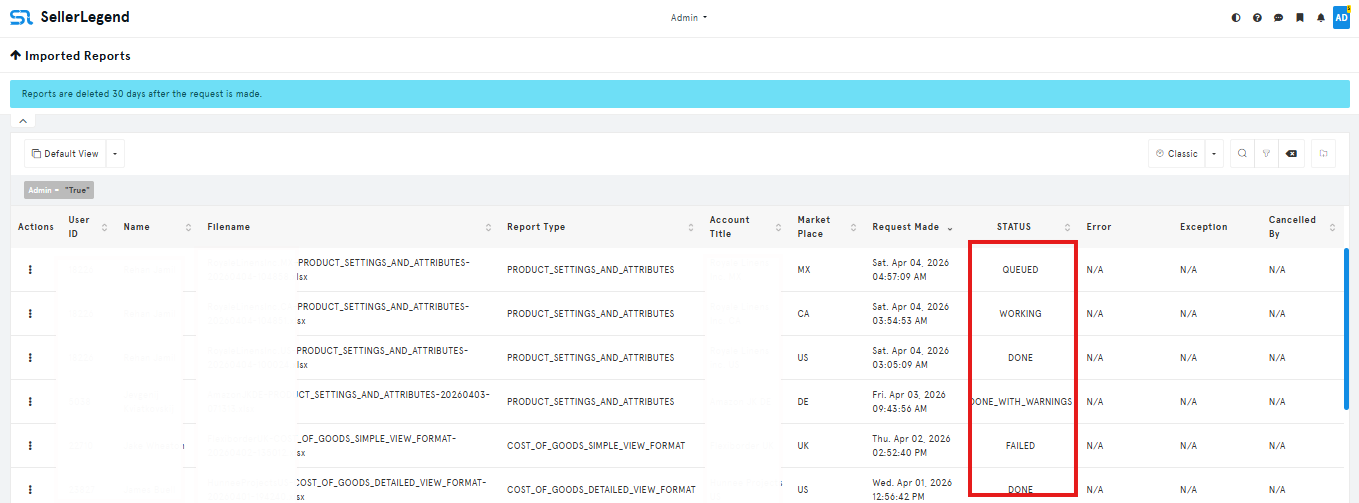
- Status
- QUEUED
- Waiting to be processed
- WORKING
- Being processed
- DONE
- Completed successfully with no errors
- DONE_WITH_WARNINGS
- Completed with some rows containing errors
- A red Download button will appear under the Download column
- Click on the button to download the processed file and see the errors in the downloaded file.
- Failed
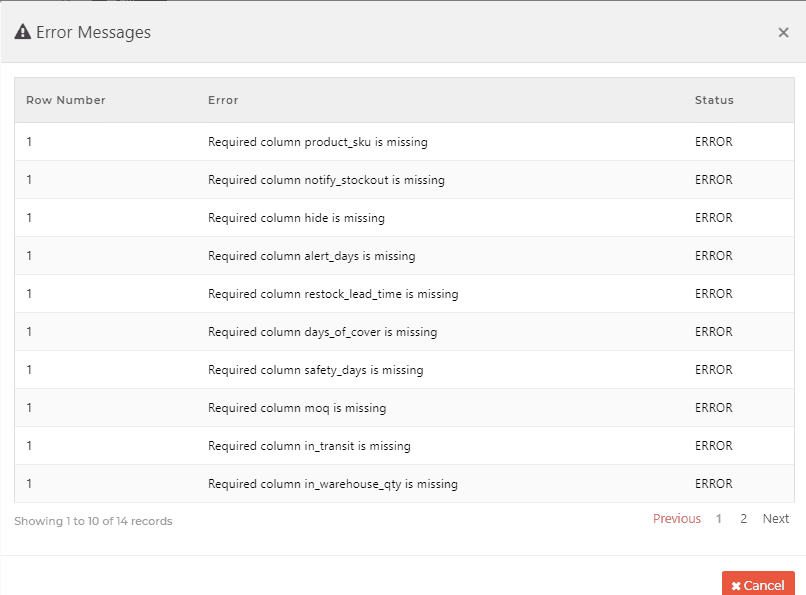
- The report fails completely and you will be able to see the error under the Error column.
- Click on the red highlighted show errors button, to see a list of errors in another window.
- QUEUED
- Request Completed
- Date and time when the report was processed and the outcome made available for error checking
- Download
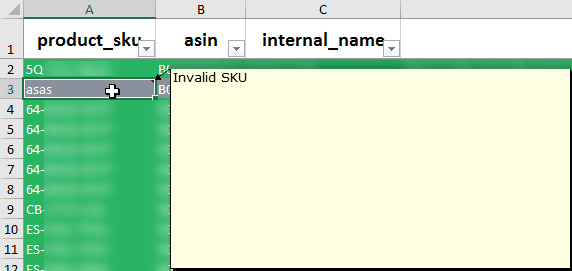
- If the file upload status shows DONE_WITH_WARNINGS, clicking on the button will download a copy of the imported file with all errors flagged therein
- Every Excel cell which has an error will be annotated with an Excel comment which describes the error
- Check cells for a small red triangle at the cell’s top right corner to identify which cells are in error
- Hover over the red triangle to display the Excel comment with the error message