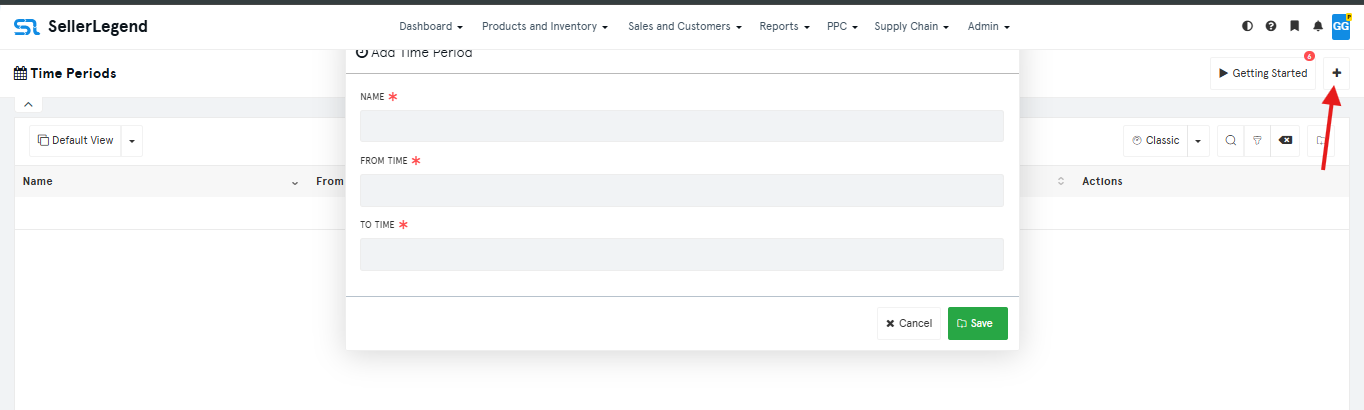
How To Get Here?
- From the Menu:
- Admin –> Time Periods
What is it for?
- If you don’t want to enter a custom date again and again while selecting a date range, then this function is for you.
- You can add a time period which will then show up the date range selector under the custom date range.
- You can then select the time period you require only by clicking its name.
Hints And Tips!
- You can add as many time periods you wish to.
- You can add time periods for seasons and holidays, for example, winter, summer, Christmas, Easter, etc.
Screen Print
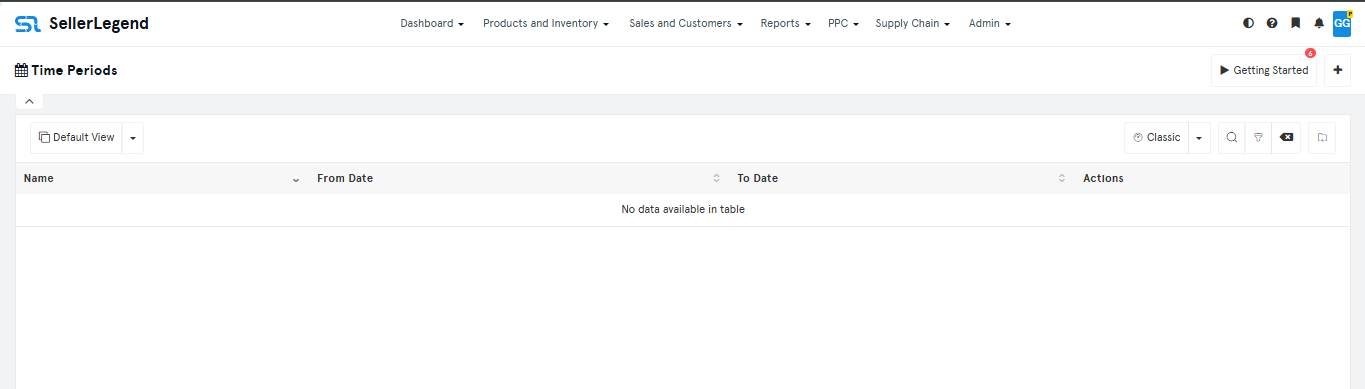
Content
- Name
- Name of the time period
- For Example, Winter Season 2016.
- This way You can easily select date only by selecting the name
- From Date
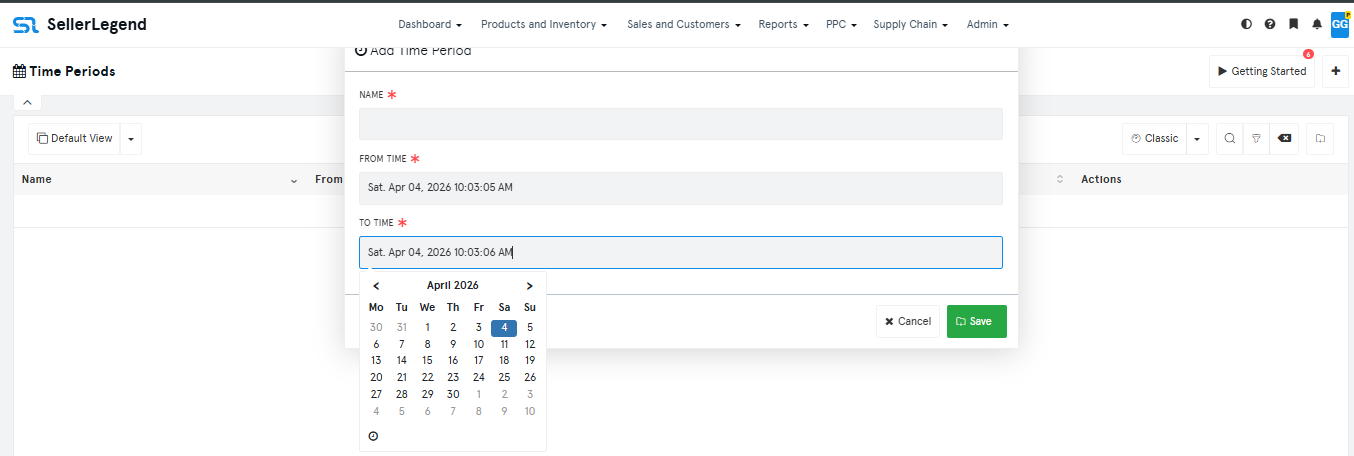
- The date from which the time period starts.
- To Date
- The date on which the time period ends.
How to add a new time period?